How to Add a Challenge Activity
Note: New demo videos are coming soon. Please refer to the visual guides and steps provided below in the meantime.
The Process:

Select 'Challenges' from your dashboard menu, then click on your Challenge folder.
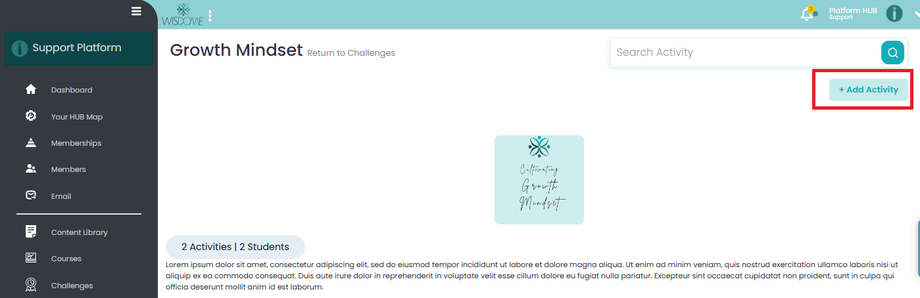
Click 'Add Activity.'
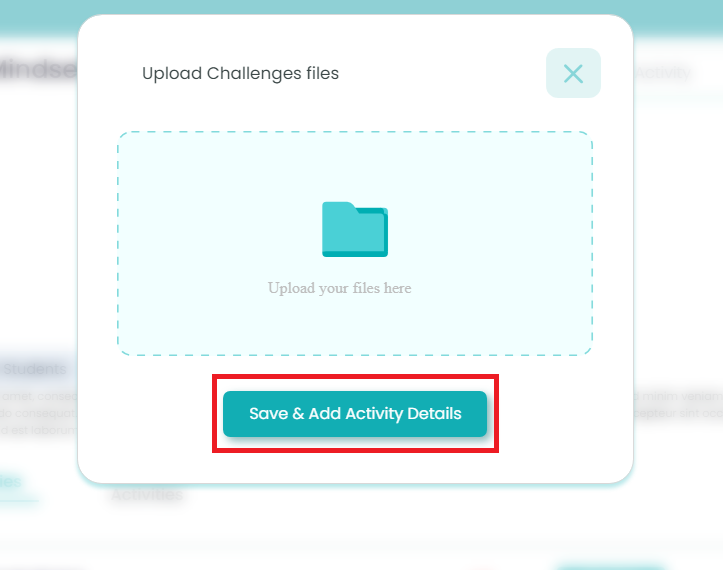
Upload your challenge file. Here you can upload any of the following files:
Video
Image
Audio


4. Click "Save & Add Activity Details."

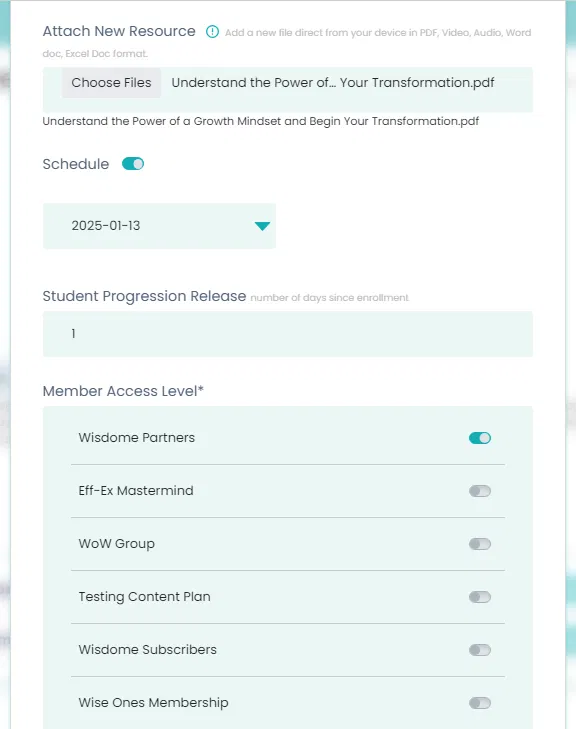

5. Add Activity Details:
Title* Max 50 Characters
Goal* Max 150 Characters
Content* Max 1500 Characters
Attach New Resource:
Upload supplementary materials directly from your device, including PDFs, videos, audio, or documents in Word or Excel format.
Schedule:
Set the date when this challenge activity will go live.
Student Progression Release:
Please select the number of days when this activity will be shown to your members based on their enrolment date.
Member Access Level:
Select the specific group of members who will gain access to this activity.
6. Click 'Create Activity'.
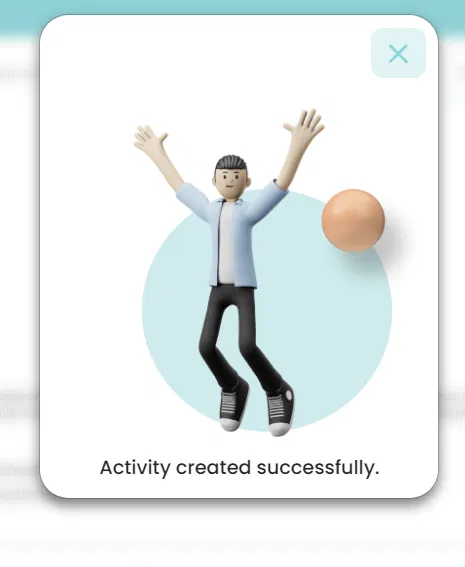
Note: You'll receive a confirmation message once everything is saved. Once you close the confirmation message popup, you'll be able to see your "Challenge Activity" details as shown in the screenshot below.