
How to Embed HTML Code on Content Library
Note: New demo videos are coming soon. Please refer to the visual guides and steps provided below in the meantime 👇
This process outlines the steps to embed HTML code within Wisdome's Content Library.
Embedding HTML codes gives you the following benefits:
Allows you to share interactive content such as flipbooks, forms, polls, and surveys
Incorporate videos, audio files, and animations
Easily manage content updates. The great thing about embedding HTML code is that if you have to revise your content, you won't have to manually re-upload your content. Any updates will automatically reflect on Wisdome.
The Process:
1. Access Content Library: Go to Content Library → Content Library Folder → Content Library Subfolder.
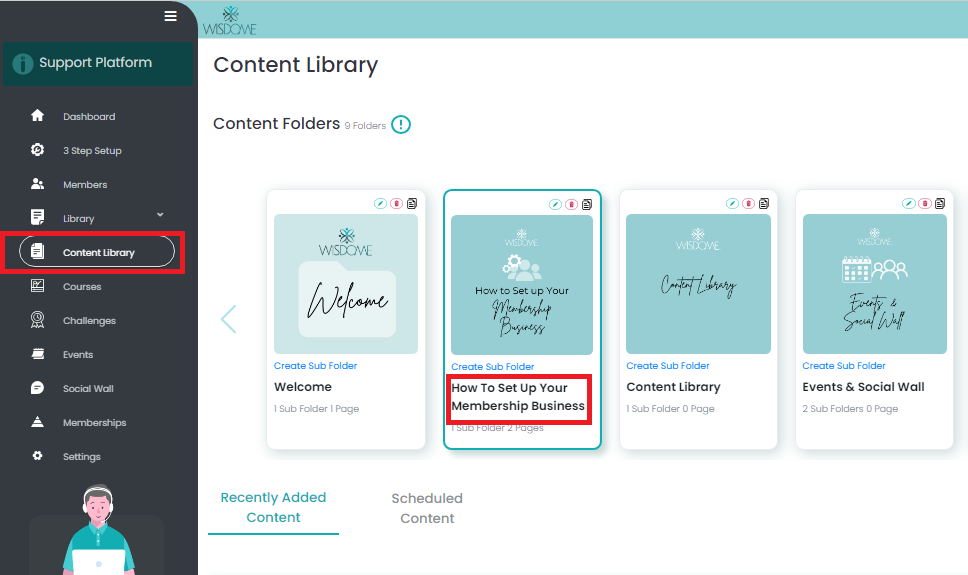
2. Create a New Content Page: Select ‘Create new’ and choose ‘Content’.
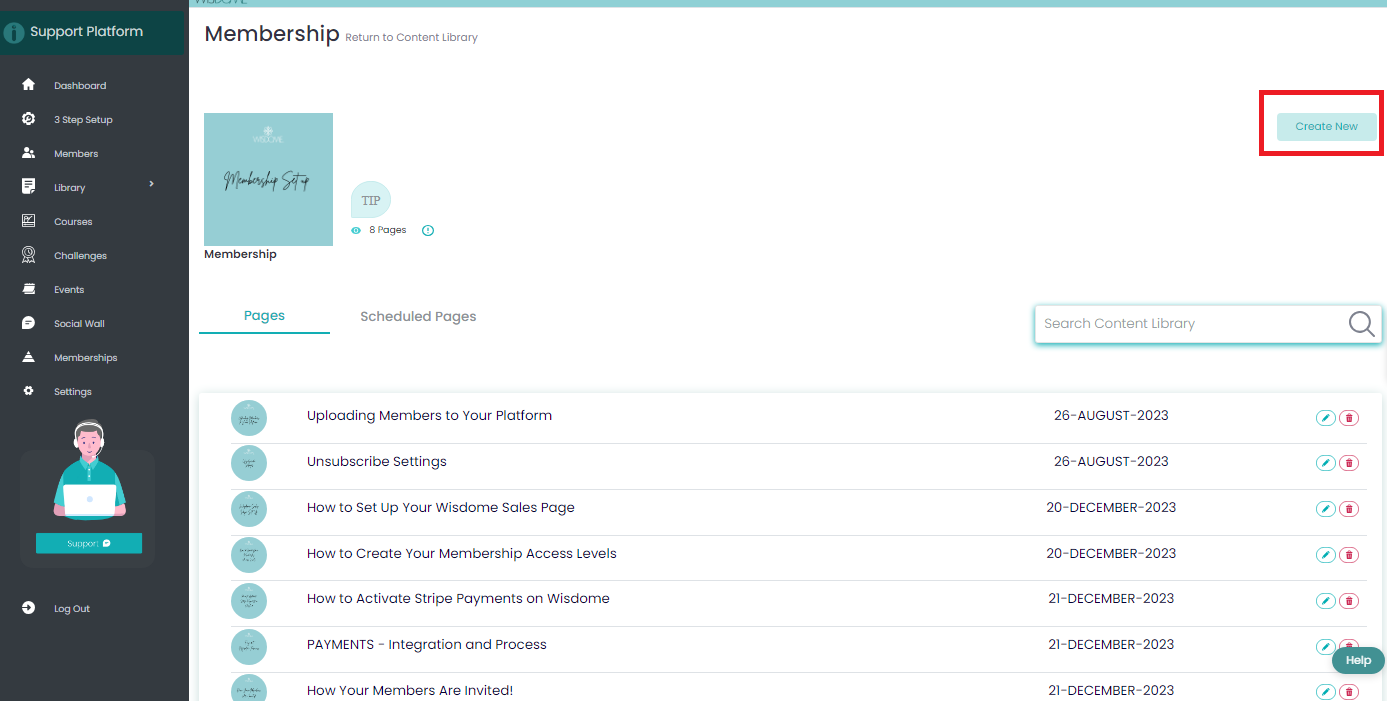
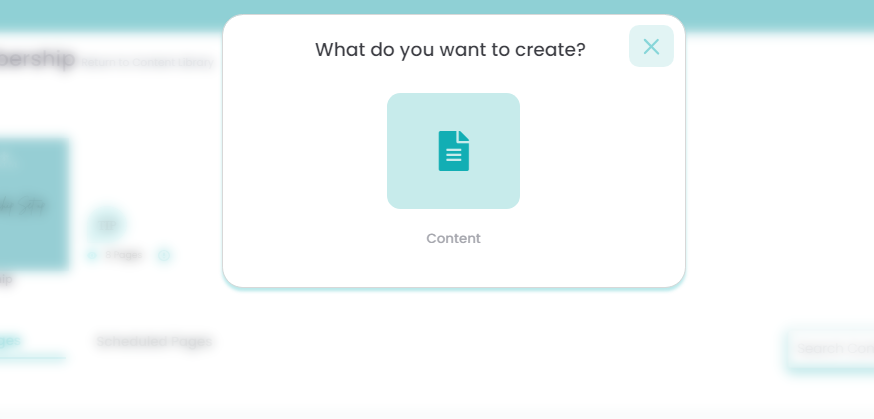
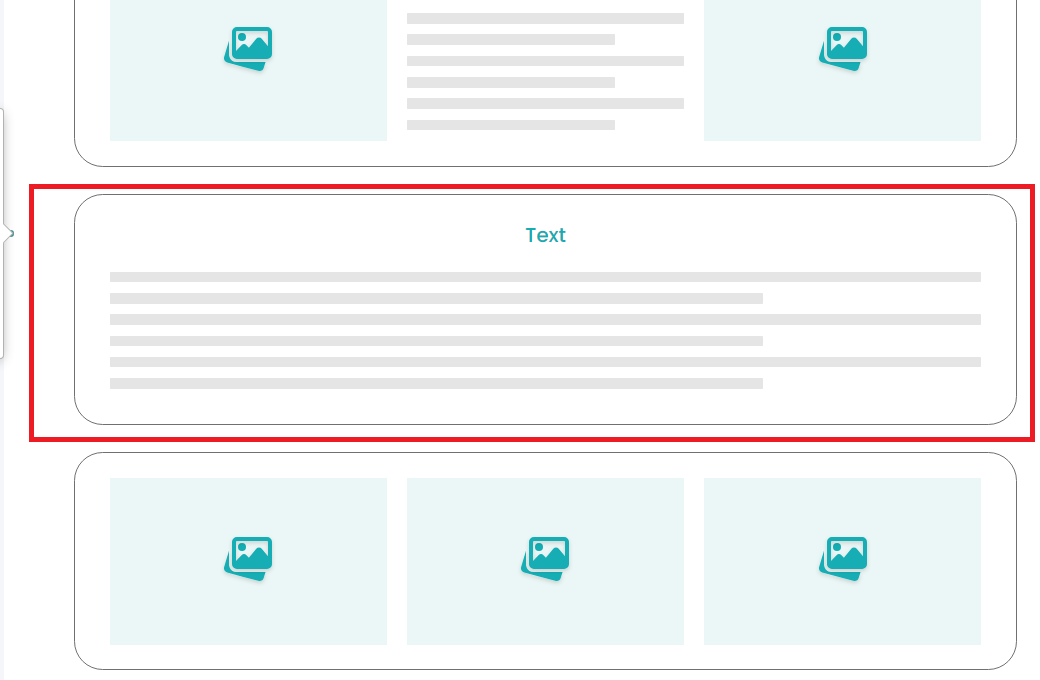
3. Choose Content Template
Once the content page is selected, choose the "Text" content template from the available options. This template will host the HTML code.
Embed HTML Code:
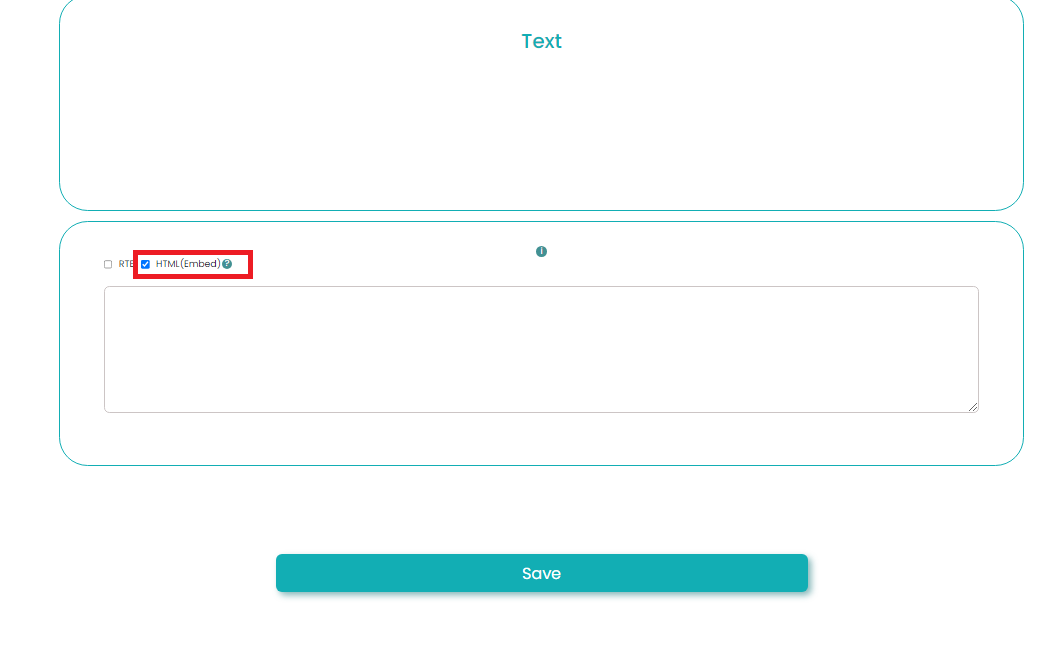
4. On the following screen, tick the box, “HTML (embed)?” paste your HTML code in the text box area, and click "Save."
5. Save and Preview:
Click ‘Save’ once again to apply the changes. You may also click "Preview" to ensure everything is in order.