
How to Change a Membership Access Level from Free to Paid
Please refer to this guide to change a membership access level from free to paid subscriptions.
1. Go to https://partner.wisdome.site. Enter your username and password to log in.

2. Click on ‘Membership’ at the lower left corner of your dashboard’s menu.

3. Select the membership access level you wish to update.
4. Click on the three-dot menu (⋮) at the right corner of the selected membership level and choose ‘Edit.’

5. Under the ‘Is this level paid or free? ’ section, turn on the radio button beside 'Paid.'
6. Click the ‘Save & Next’ button.
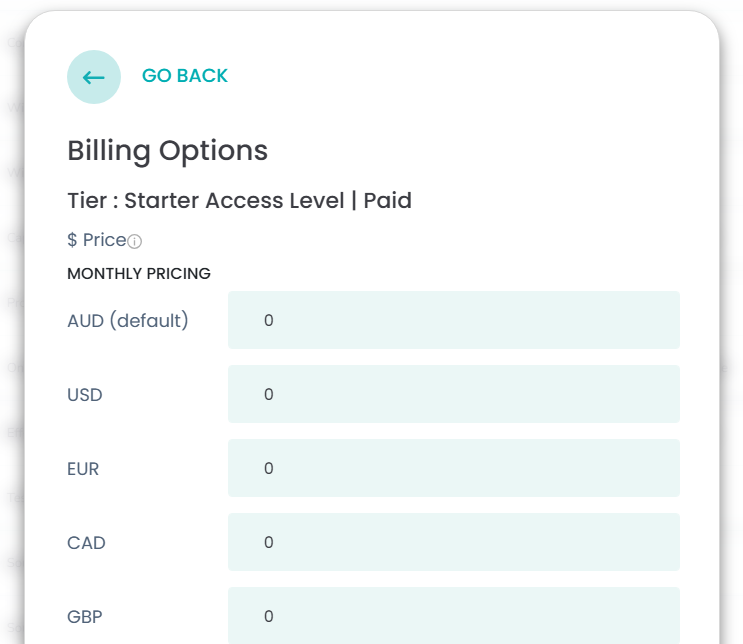
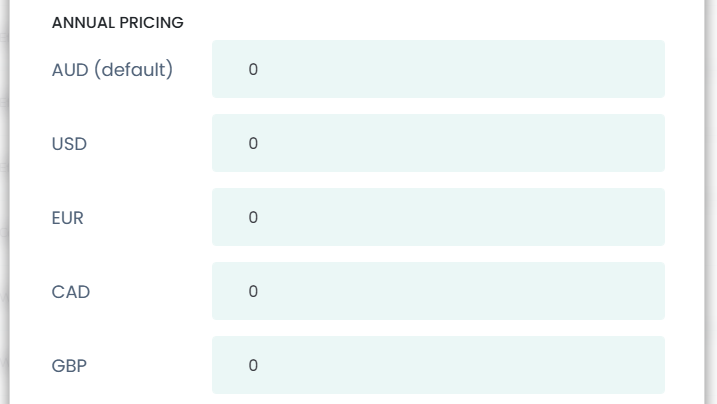
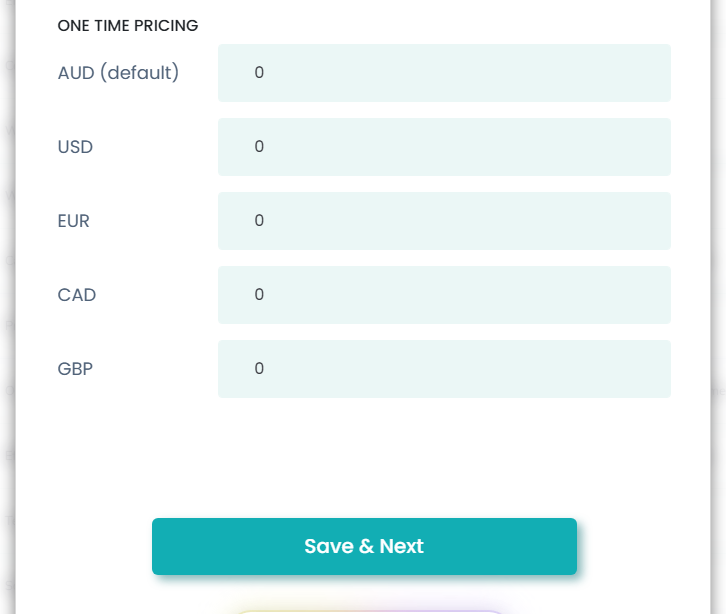
7. Enter the amounts for your membership fees, monthly, annual and one-time pricing. Click 'Save & Next."
Note: The multi-currency pricing option appears only after activation. Please check our guide ‘How to Activate Multi-Currency Payment Option for Your Knowledge Hub’ to enable it.

8. Add your success message and click 'Update.'

9. A confirmation message saying "Membership Updated Successfully" will appear once the changes are saved.
Note: If you have any feedback or questions, kindly contact us at userhelp@wisdome.com.au