
How to Update Your Business Branding
Purpose: This guide will show you how to access your Branding settings and update your business logo, brand colour, favicon and footer logo
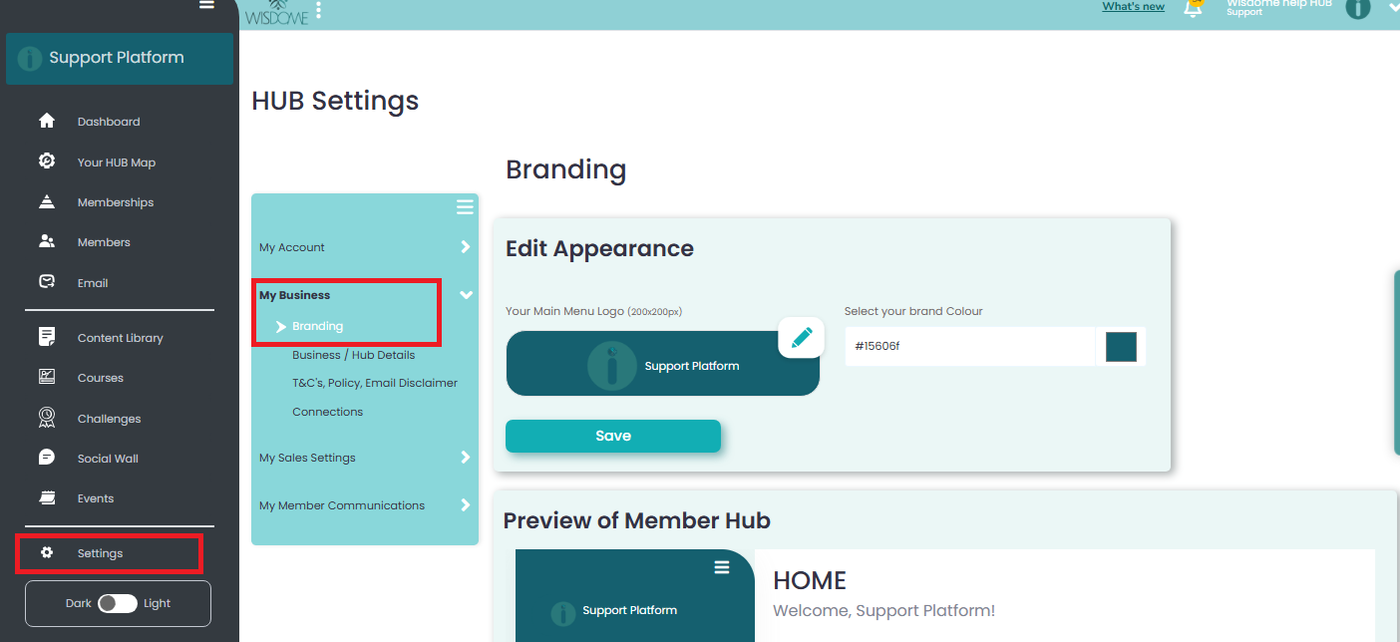
Step 1: Go to Settings
Log in to your HUB account.
On the left-hand menu, click Settings (gear icon).
Step 2: Open My Business
In the HUB Settings menu, find My Business.
Click the arrow beside it to expand the menu.
Select Branding.
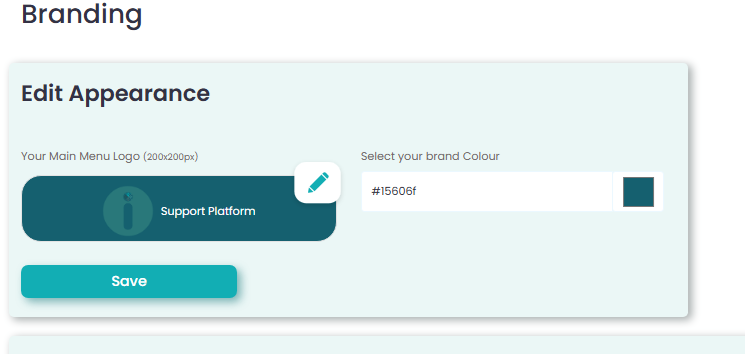
Step 3: Edit Your Branding
Under Edit Appearance, you can update two things:
A. Update Your Main Menu Logo
Find Your Main Menu Logo (200 × 200px).
Click the pencil icon.
Upload your preferred logo.
Make sure your logo is clear and fits the required dimensions.
B. Update Your Brand Colour
Find Select your brand Colour.
Enter your preferred HEX colour code (for example, #15606F).
You can also click the colour box to select a colour.
Step 4: Save Your Changes
Review your updated logo and brand colour.
Click Save.
Check that your changes have been applied successfully.
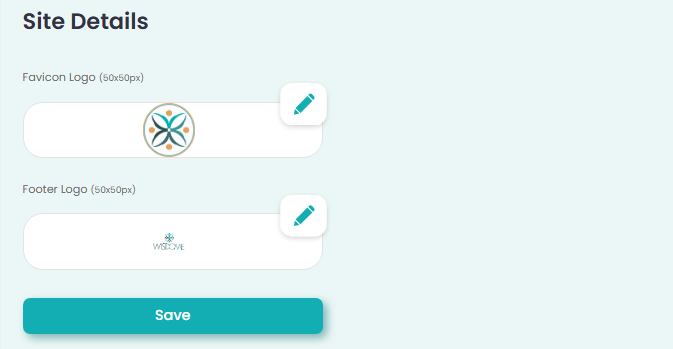
Step 5: Update Your Site Details
Upload your favicon (Favicon Logo (50x50px))
Upload your footer logo (Footer Logo (50x50px)
Click ‘Save.’