
Activating Membership Access Levels Across Your Knowledge Hub
Goal: Here’s how you can give the right members access to your content by activating Member Access Levels across your hub.
1. Activating Access Levels For Your Content Library
Rule: Access must be switched on in the main folder, subfolder and pages.
The process:
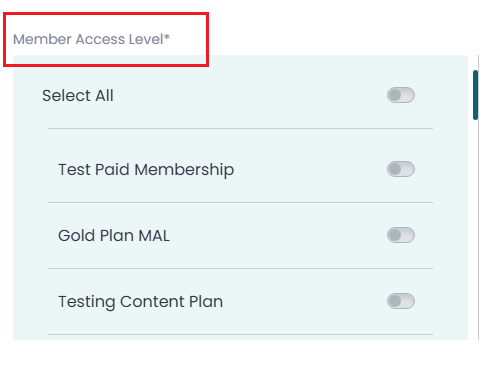
Main Folder: Go to Content Library, open the folder settings, scroll to Member Access Level*, and switch the toggles on for the right memberships.
Click Save.
Subfolders & Pages: Open the settings for each Subfolder and Content Page (Page details) inside it. Switch the matching membership toggles on. Click Save.
2. Activating Access Levels For Courses
The Process:
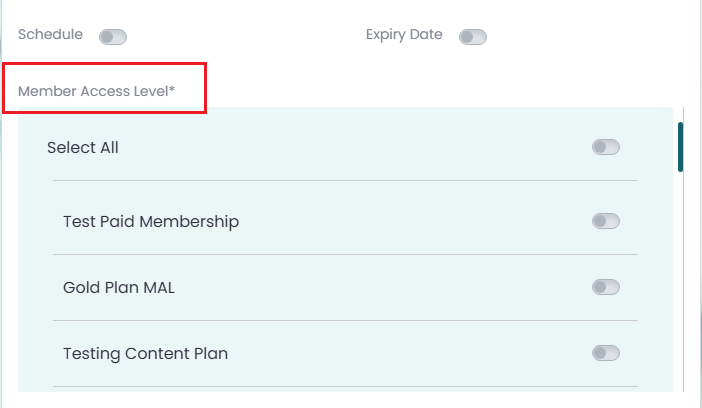
Course Folder: Go to Courses, open your course folder and scroll to Member Access Level*, and switch the toggles on for the required memberships. Click Save.
Modules & Lessons: When creating a module or a lesson, switch the matching matching membership toggles on under Member Access Level*, and click Save.
3. Challenges
Rule: Both the main folder and the activity section must be unlocked for your members.
The process:
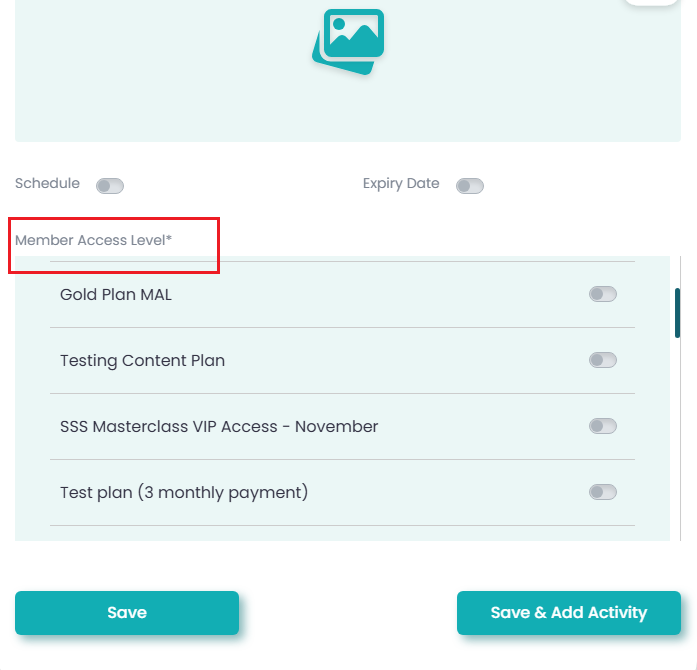
Main Challenge Folder: Go to Challenges, open the main folder settings, scroll to Member Access Level*, and switch the toggles on for the authorised memberships. Click Save.
Challenge Activities: Open the Challenge Activity section, switch the matching membership toggles on under Member Access Level*, and click Save.
4. Social Wall
Goal: Allow specific membership tiers to view and post in a community forum.
The process:
Go to Social Wall in the left menu.
Open the settings for the Main Social Wall Folder.
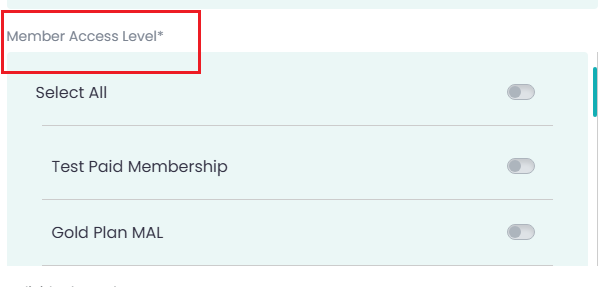
Scroll down to Member Access Level* and switch the toggles on for the memberships that should have access.
Click Save.
5. Events
Goal: Control which members can view your upcoming events.
The process:
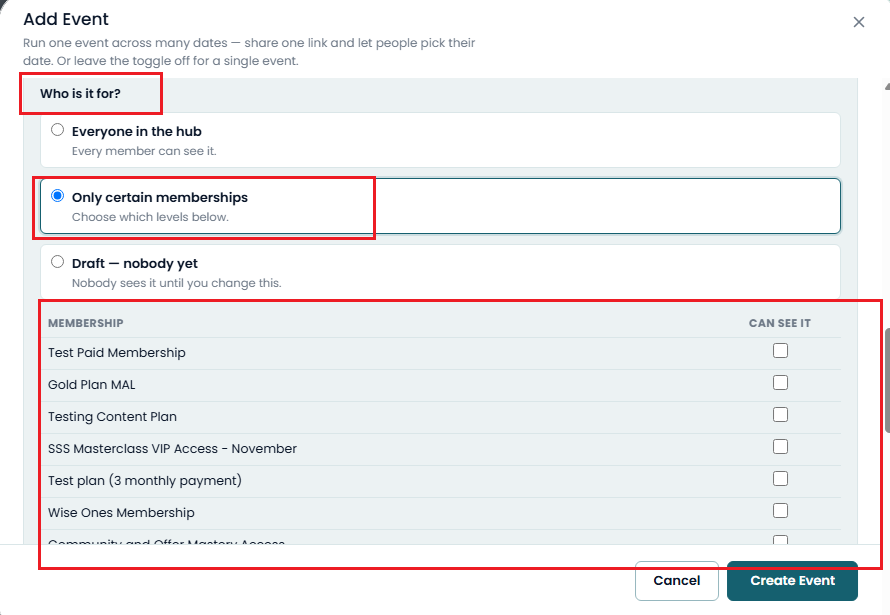
Go to Events in the left menu and open Add Event (or edit an existing event).
Scroll to the Who is it for? section.
Select Only certain memberships (or choose Everyone in the hub if it is open to all).
Tick the CAN SEE IT checkbox next to each membership tier that should see the event.
Click Save.